

TiviMate Premium Setup Guide: 2026 Complete Walkthrough

The ultimate TiviMate Premium setup 2026 process involves three simple steps: sideloading the app, unlocking the premium features using the companion app, and authenticating your playlist. As the most advanced IPTV player for Android devices, it provides the perfect interface for your Nexus 4K IPTV subscription, ensuring lightning-fast channel zapping and zero buffering.
Why TiviMate Premium is the Ultimate IPTV Player
For Android TV and Firestick users, TiviMate has completely replaced legacy software. The free version offers basic playlist functionality, but upgrading to Premium is mandatory for serious cord-cutters. Premium unlocks multiple playlists, favorites management, scheduled recording, and a highly customizable Electronic Program Guide (EPG). When compared to other Android TV IPTV players, TiviMate consistently benchmarks higher in UI responsiveness and 4K decoding efficiency. If you want a cable-like experience without the cable bill, pairing TiviMate Premium with a premium service is the definitive 2026 solution.
Step 1: Installing TiviMate on Firestick or Android TV
TiviMate is natively available on the Google Play Store for Android TV users (Nvidia Shield, Chromecast with Google TV). Simply search "TiviMate IPTV Player" and click install. However, Amazon Firestick users must sideload the application using the Downloader app.
To sideload on a Firestick, first enable apps from unknown sources in your developer settings (if you don't see them, check our guide on fixing missing developer options). Next, open the Downloader app, enter the official TiviMate APK URL or shortcode, and install the package. Once installed, do not add a playlist yet—you need to unlock Premium first for the best experience.
Step 2: Unlocking Premium via TiviMate Companion
Because TiviMate is not in the Amazon Appstore, you cannot purchase Premium directly on a Firestick. You must use an Android smartphone or tablet. Download the TiviMate Companion app from the Google Play Store. Create an account, log in, and purchase the lifetime or yearly subscription. One Premium account covers up to 5 devices simultaneously.
Once purchased on your phone, return to your TV. Open TiviMate, navigate to Settings > Unlock Premium, and log in with the credentials you just created in the Companion app. Your device is now fully activated and ready for your playlist.
Step 3: Connecting Your Nexus 4K IPTV via Xtream Codes
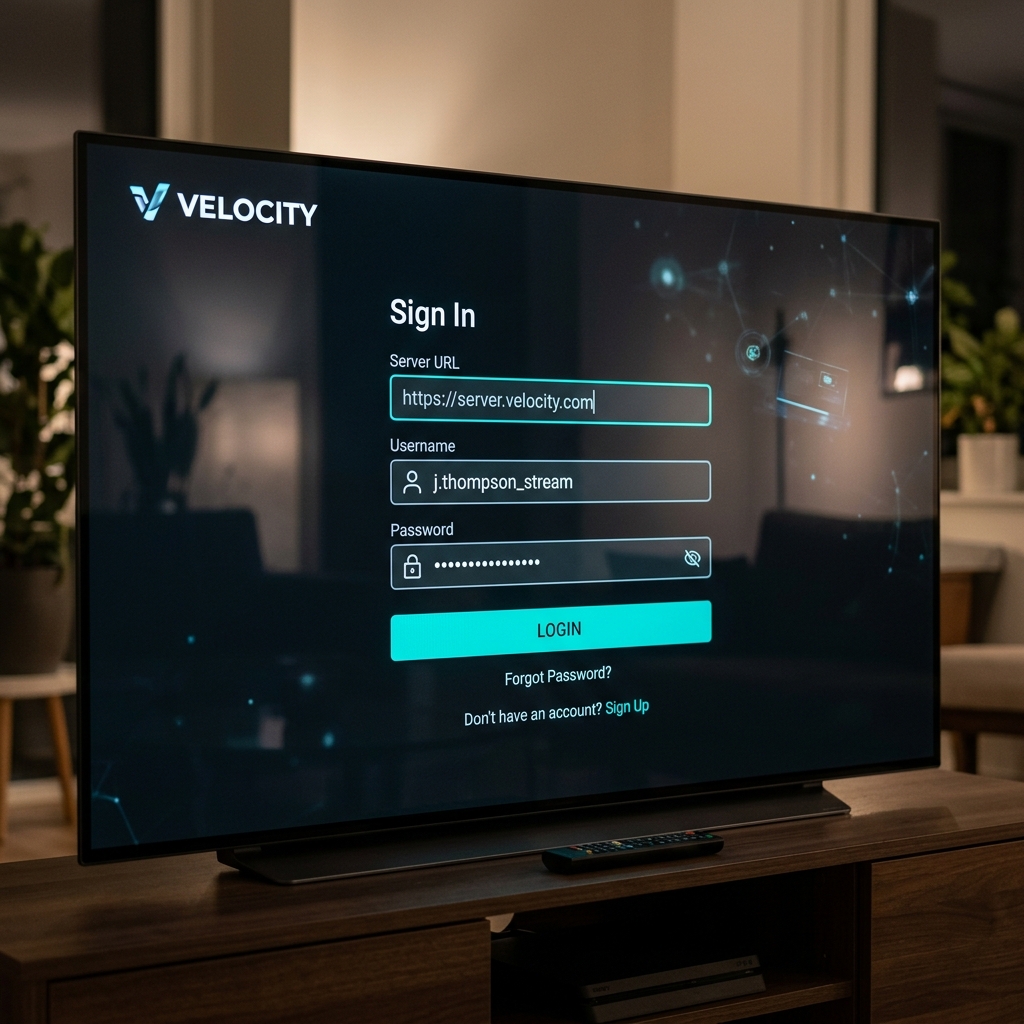
While TiviMate supports M3U URLs, using the Xtream Codes API is highly recommended for faster loading and automatic EPG updates. Open TiviMate and select "Add Playlist," then choose "Xtream Codes Login."
You will need the Server URL, Username, and Password provided in your Nexus 4k IPTV welcome email. Enter these details exactly as provided (they are case-sensitive). Check the box for "Include VOD" if you want access to the massive movie library. Click Next, and TiviMate will instantly pull your channels, categories, and TV guide.
Troubleshooting Common TiviMate Buffering Issues
If you experience stuttering while watching live sports, the issue is rarely the app itself. First, increase the buffer size in TiviMate by going to Settings > Playback > Buffer size, and set it to "Large" or "Very Large." If the issue persists, it's likely your ISP throttling your connection. We strongly recommend reviewing our guide on the best VPNs for IPTV to secure your connection and bypass artificial speed limits. With a VPN active and TiviMate properly configured, your streaming setup will be flawless.


