

How to Watch IPTV on VLC in 2026: The Complete Setup Guide
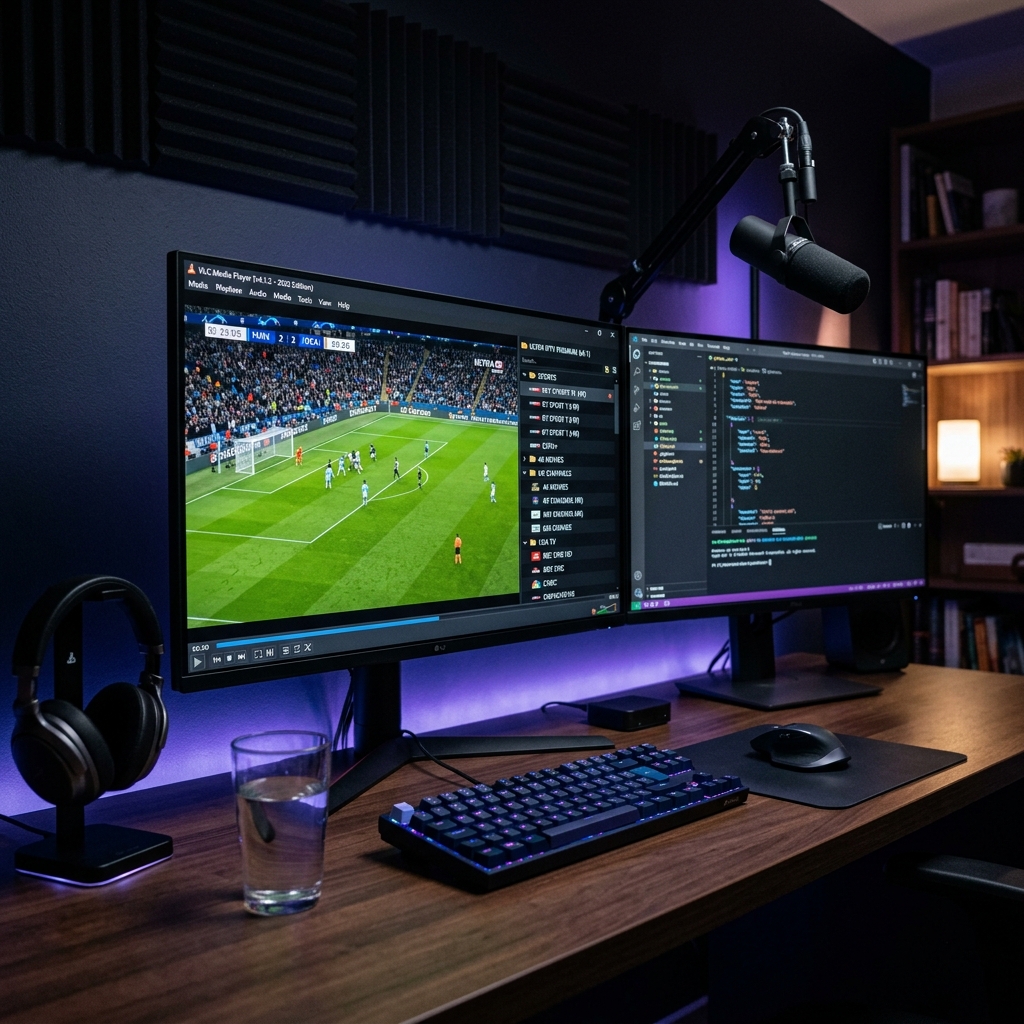
To watch IPTV on VLC in 2026, open the app, go to Media > Open Network Stream, paste your M3U playlist URL, and click Play. VLC's built-in network streaming engine handles live channels, EPG metadata, and 4K streams without any additional plugins or subscriptions. For the best experience, pair VLC with a premium Nexus 4K IPTV subscription that provides a reliable M3U URL and dedicated server infrastructure.
Why VLC Is Still a Top IPTV Player in 2026
VLC Media Player remains the world's most installed multimedia application — and for good reason. Its open-source engine supports virtually every codec in existence, including H.264, H.265 (HEVC), and AV1, making it uniquely qualified to handle the wide variety of stream encodings used by modern IPTV providers. Unlike dedicated IPTV apps that may restrict functionality or require paid upgrades, VLC is completely free, available on every major platform, and offers deep configuration control for power users.
In 2026, VLC 4.x introduced significant improvements to its network buffering engine, reducing stream startup latency and improving recovery from brief packet drops — a critical upgrade for live sports streaming. The application now handles high-bitrate 4K HEVC streams considerably more smoothly than it did in prior versions, making it a genuinely competitive option even for users who care deeply about picture quality.
If you're still deciding between VLC and a dedicated player, check out our guide to the best IPTV players for 4K streaming in 2026 for a complete comparison. Once you've chosen your approach, visit the Nexus 4K IPTV pricing page to grab a subscription and your M3U URL.
Step-by-Step: How to Load an IPTV M3U Playlist in VLC
The process is identical across Windows, macOS, and Linux. Follow these steps precisely to go from install to live stream in under two minutes.
Step 1: Download and Install VLC
If VLC is not already installed, download the latest stable release from videolan.org. Always use the official site to avoid modified builds that may contain adware or security vulnerabilities. VLC is available for Windows 10/11, macOS Ventura and later, Ubuntu, Fedora, and major Linux distributions. Install using the default settings — no custom options are required for IPTV functionality.
Step 2: Open Network Stream
Launch VLC and navigate to Media > Open Network Stream (shortcut: Ctrl+N on Windows, Cmd+N on macOS). A dialog box will appear with a single input field labeled "Network URL." This is where you will paste your M3U playlist URL. Your M3U URL is provided in the welcome email from your IPTV subscription service. It typically follows this format: http://yourserver.com:PORT/get.php?username=USER&password=PASS&type=m3u_plus.
Step 3: Configure Caching for Live Streams
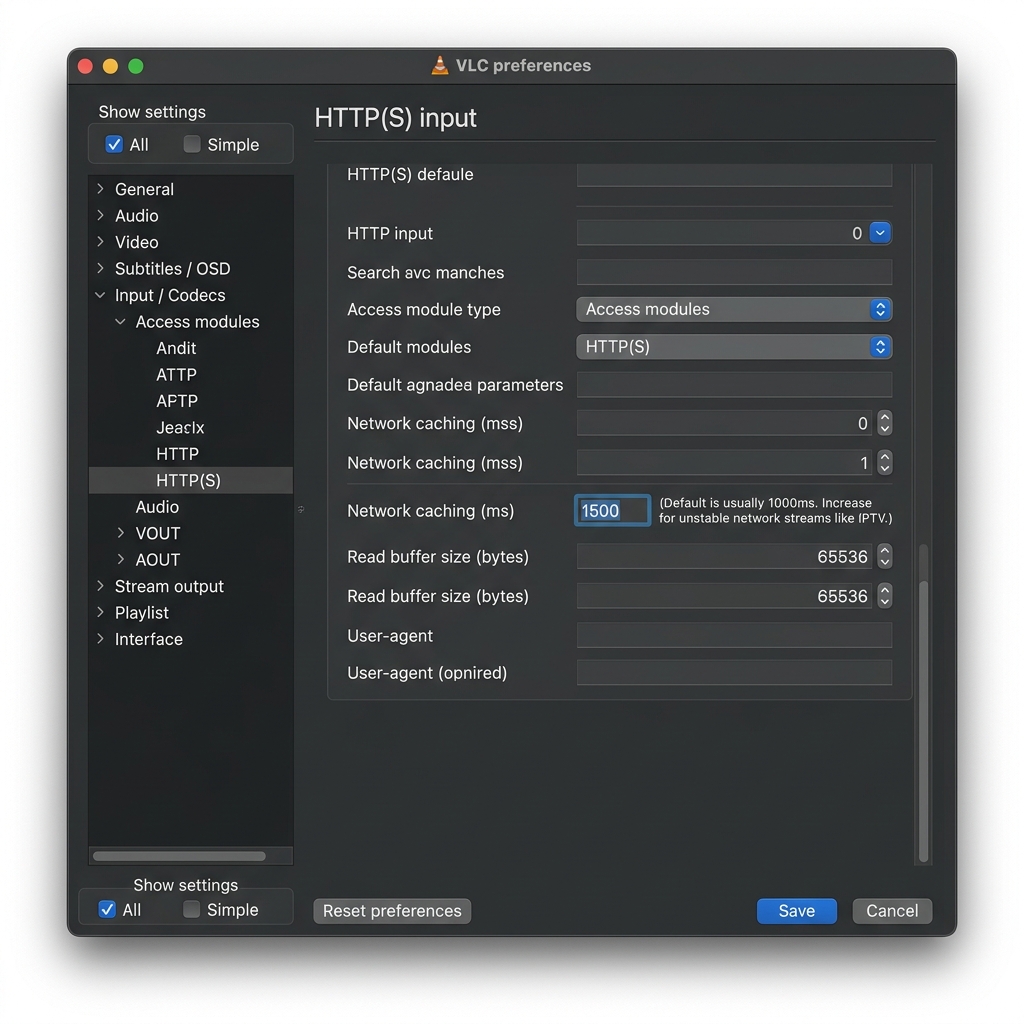
Before clicking Play, adjust VLC's network caching setting for a dramatically smoother live stream experience. Go to Tools > Preferences > Show All Settings > Input / Codecs. Set "Network Caching (ms)" to 1000–2000 milliseconds for live TV. Lower values (300–500ms) reduce delay but increase the risk of buffering during peak network congestion. For sports events where real-time viewing matters, 1000ms is the recommended balance. Click Save, then return to your network stream and click Play.
VLC vs Dedicated IPTV Players: An Honest Comparison
VLC is powerful, but it was not designed exclusively for IPTV. Dedicated players like Tivimate and Sparkle TV offer features that VLC cannot replicate natively — most importantly, a visual Electronic Program Guide (EPG) that shows what is currently on and what's coming next across every channel. Before choosing your primary player, understand the tradeoffs clearly.
| Feature | VLC Media Player | Tivimate Premium | IPTV Smarters |
|---|---|---|---|
| Cost | Free | Paid (One-Time) | Free / Paid Tiers |
| Visual EPG Guide | No | Yes — Full Grid | Yes — Basic |
| 4K HEVC Support | Yes | Yes | Yes |
| VOD Library Access | Via M3U only | Full Xtream VOD | Full Xtream VOD |
| Multi-Playlist Support | Manual only | Yes — Unlimited | Yes |
| Channel Zapping Speed | Moderate | Sub-1 Second | Fast |
| Platforms | Win / Mac / Linux | Android / FireTV | All Platforms |
The conclusion is straightforward: VLC is the best option for desktop users who want a fast, zero-cost setup and do not require a full EPG grid. For Android TV, Firestick, or Smart TV users who want a polished, app-like IPTV experience with full program guide support, a dedicated player is the better long-term choice. Many users run both — VLC on their laptop for flexibility, and Tivimate on their living room TV for daily viewing.
How to Fix VLC IPTV Buffering in 2026
Buffering in VLC during live IPTV playback is almost always caused by one of three factors: insufficient network cache, ISP throttling, or an overloaded provider server. Work through each cause systematically before assuming the problem is permanent.
Fix 1: Increase Network Cache
As described in Step 3 above, raising VLC's network caching to 2000ms gives the player a larger buffer to absorb brief packet drops. This is the fastest and most effective fix for occasional stuttering. If you are watching on a laptop connected via Wi-Fi, moving closer to the router or switching to the 5 GHz band will often resolve the issue entirely without any VLC configuration changes.
Fix 2: Switch to a Different Server Region
Premium IPTV providers like Nexus 4K IPTV operate servers across multiple geographic regions. If your assigned server is experiencing high load during a popular broadcast event, requesting a server region change through customer support often eliminates buffering completely. This is especially relevant during NFL playoff games, UFC events, and Premier League matchdays when concurrent viewer counts spike significantly.
Fix 3: Use an Ethernet Connection
Wi-Fi introduces variable latency that can disrupt live stream delivery even when average speeds appear sufficient. A direct ethernet connection to your router eliminates this variability entirely. For desktop users, this is the most permanent and cost-effective fix for recurring buffering issues on any IPTV player, VLC included.
Watching IPTV on VLC: Platform-Specific Notes
While the core setup process is identical across operating systems, there are platform-specific considerations that affect performance and recommended settings in 2026.
VLC IPTV on Windows 11
Windows 11 users benefit from VLC's hardware acceleration via DirectX Video Acceleration (DXVA). Ensure this is enabled by going to Tools > Preferences > Input / Codecs and setting "Hardware-accelerated decoding" to "DirectX Video Acceleration (DXVA) 2.0." This offloads 4K HEVC decoding to your GPU, dramatically reducing CPU load during high-bitrate streams. On modern systems with a dedicated GPU, this setting alone can eliminate frame drops on the most demanding 4K channels.
VLC IPTV on macOS
On macOS Sequoia and later, VLC uses VideoToolbox for hardware-accelerated decoding on Apple Silicon Macs. M1, M2, and M3 MacBook and Mac Mini users will find that even demanding 4K HEVC streams play at near-zero CPU usage, making VLC an excellent primary IPTV player on Apple hardware. Ensure "Hardware-accelerated decoding" is set to "VideoToolbox" in VLC's codec preferences for optimal performance.
Getting Your M3U URL from Nexus 4K IPTV
The M3U URL is the essential piece of information that connects VLC to your live channel library. When you subscribe to Nexus 4K IPTV, your welcome email includes three pieces of information: a Server URL, a Username, and a Password. To construct your M3U URL for VLC, combine them using the standard format:
http://[ServerURL]/get.php?username=[USER]&password=[PASS]&type=m3u_plus&output=ts
Paste this complete URL into VLC's Open Network Stream dialog. The output=ts parameter ensures VLC receives a transport stream format that it handles natively, preventing compatibility issues with certain channel encodings. If you need help constructing your URL or retrieving your credentials, the Nexus 4K IPTV support team is available 24/7.
Frequently Asked Questions
Can VLC play M3U IPTV playlists?
Yes, completely. VLC natively handles M3U and M3U8 formats. Use Media > Open Network Stream, paste your M3U URL, and your full channel library loads immediately. No additional plugins or extensions are required.
Why is my IPTV buffering on VLC?
The most effective fix is increasing VLC's network caching to 1500–2000ms under Tools > Preferences > Input / Codecs. If buffering persists, switch from Wi-Fi to a wired ethernet connection, or contact your provider to request a lower-latency server region.
Does VLC support 4K IPTV streams?
Yes. VLC 4.x supports H.265 HEVC 4K streams and can offload decoding to your GPU using DXVA 2.0 on Windows or VideoToolbox on Apple Silicon Macs, making 4K playback smooth on any modern hardware.
Does VLC have an EPG guide for IPTV?
VLC does not include a visual EPG grid. If a full program guide is important for your daily viewing, pair your Nexus 4K IPTV subscription with a dedicated player like Tivimate, which provides a cable TV-style EPG on every channel.
Is VLC free to use for IPTV streaming?
VLC is 100% free and open-source. The only cost associated with IPTV on VLC is your subscription to a live channel provider. Visit our pricing page to see Nexus 4K IPTV plans starting from $10/month with a 24-hour free trial available.
VLC makes IPTV accessible to anyone with a computer and an internet connection — no new devices, no subscriptions to additional apps, and no complicated setup. Grab your Nexus 4K IPTV M3U URL, open VLC, and you are streaming 30,000+ live channels in 4K within two minutes. Ready to get started? Choose your plan now and receive your credentials instantly.


