

How to Watch IPTV on Roku in 2026: Complete Setup Guide
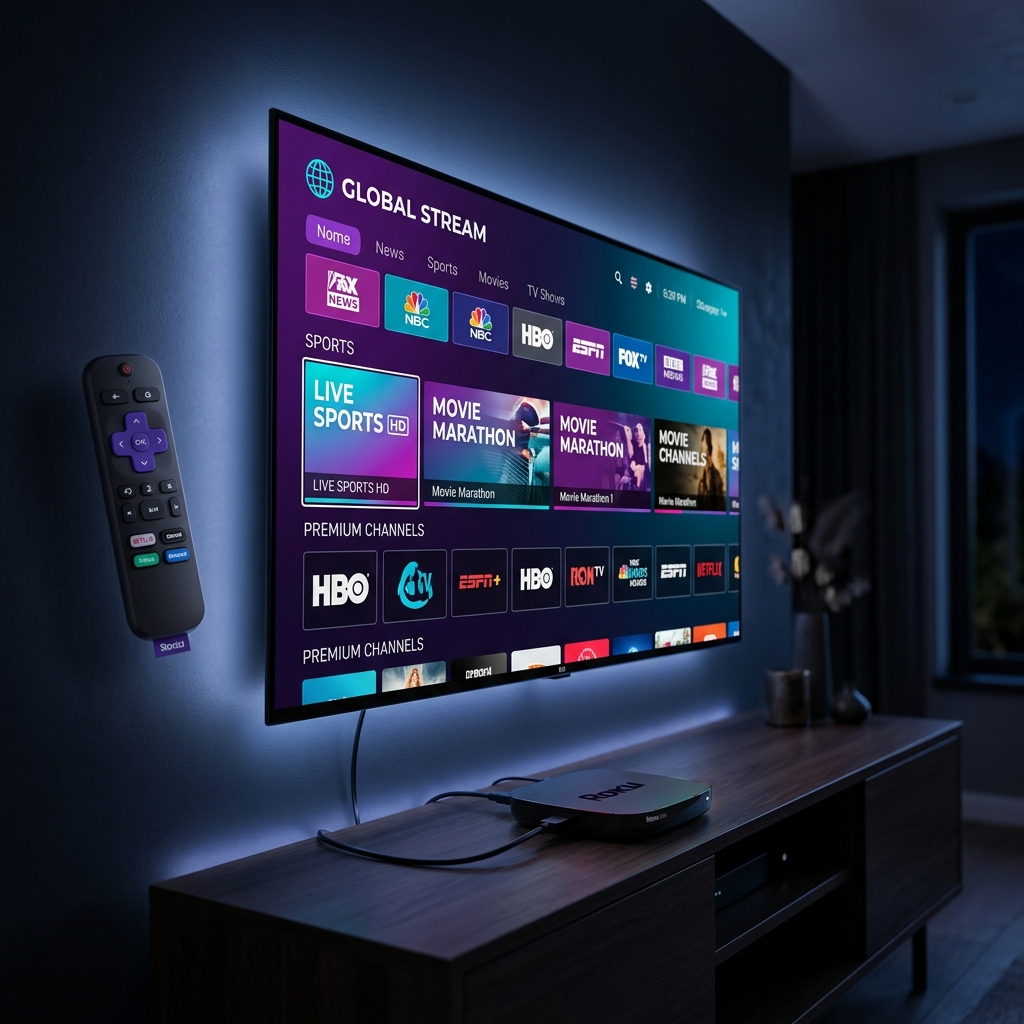
You can watch IPTV on Roku in 2026 using three primary methods: adding a private Roku IPTV channel, using screen mirroring from an Android or Windows device, or casting directly through the Roku mobile app. While Roku's closed ecosystem makes native sideloading impossible, these proven workarounds deliver a smooth, reliable streaming experience. For the best results, pair any method with a premium Nexus 4K IPTV subscription that includes dedicated Roku-optimized stream links.
Why Roku Handles IPTV Differently Than Other Devices
Roku's popularity in the United States — with over 80 million active accounts as of early 2026 — is built on one key design choice: a completely curated, closed channel store. Unlike Amazon Firestick or Android TV, Roku does not allow users to sideload APK files. Every app must be submitted to and approved by Roku's developer portal, which means mainstream IPTV players like Tivimate and Smarters are not directly available through the official channel store.
This does not mean Roku is incompatible with IPTV — it means the setup approach is different. Roku supports private channels (unlisted channels accessible via a direct code), screen mirroring from Android and Windows 11 devices, and browser-based playback on select Roku TV models. Understanding which method fits your use case is the first decision to make before setting up your service.
If you are still weighing your device options, visit the Nexus 4K IPTV homepage to review compatibility across all major platforms, or go directly to our pricing page to see which subscription plan includes multi-device support.
Method 1: Add an IPTV Private Channel on Roku
The most native Roku experience for IPTV comes through private channels — unlisted Roku apps that are accessible via a direct channel code rather than the public channel store. Developers can publish these without going through full Roku approval, which is how services like "The Channels App" and "IPTV Smart" have reached Roku users.
How to Add a Private IPTV Channel
To add a private channel, open a browser on your phone or computer and navigate to my.roku.com. Sign in to your Roku account, click on "Add Channel," and enter the private channel code provided by the IPTV-compatible app you have chosen. Once added, the channel will appear on your Roku home screen within 24 hours or after a device restart. From inside the app, enter your M3U playlist URL or Xtream Codes credentials — the same login details provided in your Nexus 4K IPTV welcome email — and your full channel list will load automatically.
Best Private IPTV Channels for Roku (2026)
Not all private Roku IPTV channels are equal in terms of stability and feature set. The following apps have been tested and verified to work reliably with premium M3U subscriptions throughout 2026.
| App Name | M3U Support | EPG Support | 4K Streams | Ease of Setup |
|---|---|---|---|---|
| The Channels App | Yes | Full EPG | Yes | Easy |
| IPTV Smart (Private) | Yes | Basic EPG | Yes | Moderate |
| Streamer for Playlists | Yes | Limited | 1080p Max | Very Easy |
Method 2: Screen Mirror IPTV to Roku
Screen mirroring is the fastest way to get any IPTV player running on your Roku-connected TV. Because Roku supports Miracast, you can wirelessly mirror the screen of an Android smartphone, Android tablet, or Windows 11 laptop directly to your Roku device — effectively turning your TV into a second display for whatever IPTV app you are running on the source device.
Screen Mirroring from Android
On your Roku device, navigate to Settings > System > Screen Mirroring and set the mode to "Always Allow" or "Prompt." On your Android phone, open the quick-settings panel, tap "Smart View," "Cast," or "Screen Mirror" (the label varies by manufacturer), and select your Roku device from the list. Once connected, open your preferred IPTV player — IPTV Smarters, GSE Smart IPTV, or TiViMate on Android — and the stream will appear full-screen on your TV. For the cleanest experience, connect your phone to your Wi-Fi network on the 5 GHz band to minimize latency.
Screen Mirroring from Windows 11
Windows 11 includes a built-in Miracast feature that works seamlessly with Roku. Press Windows Key + K to open the Cast panel, then select your Roku device. Once connected, open a browser-based IPTV player or the Windows version of any IPTV app and your stream will display on the TV. This method is particularly useful for VOD content and catch-up TV where a small amount of latency is acceptable.
Method 3: Cast via the Roku Mobile App
The official Roku mobile app for iOS and Android includes a private listening and screen-cast feature that lets you send media from your phone directly to any Roku device on the same Wi-Fi network. While this method is better suited for short-form content than live TV streaming, it works as a reliable fallback for users who want zero setup complexity. Simply play a stream in your mobile IPTV app, tap the cast icon, and select your Roku device — no account linking, no codes, no configuration required.
Roku vs. Firestick for IPTV: Which Is Better?
For users still deciding between devices, the comparison between Roku and Firestick is one of the most commonly asked questions in the US cord-cutting community. Both are excellent streaming devices, but they serve fundamentally different types of IPTV users.
| Feature | Roku Ultra 2026 | Fire Stick 4K Max |
|---|---|---|
| Native IPTV App Support | Private Channels Only | Full Sideloading |
| Setup Complexity | Moderate | Easy with Downloader |
| 4K HDR Performance | Excellent | Excellent |
| Screen Mirroring | Yes (Miracast) | Yes (Miracast) |
| Best IPTV Player Available | The Channels App | Tivimate Premium |
| Price (Device) | $99 (Ultra) | $59 (4K Max) |
For pure IPTV performance and app flexibility, the Fire Stick 4K Max is the stronger recommendation. However, if you already own a Roku device or prefer its interface, the private channel and screen mirroring methods above deliver a genuinely usable IPTV experience without requiring a new device purchase.
Optimizing Your IPTV Stream Quality on Roku
Regardless of which setup method you choose, stream quality on Roku is heavily influenced by your home network configuration. IPTV is a live, real-time protocol — unlike on-demand streaming platforms that use adaptive buffering, IPTV streams are delivered at a constant bitrate that requires consistent bandwidth to maintain picture quality.
Use a 5 GHz Wi-Fi Connection
Roku devices support dual-band Wi-Fi, and the single most impactful change you can make is ensuring your device is connected to the 5 GHz band rather than the 2.4 GHz band. The 5 GHz band has significantly more available bandwidth and experiences far less interference from neighboring networks and household devices like microwaves. For 4K IPTV streams that require 25 Mbps or more, 5 GHz is not optional — it is the baseline requirement for a consistent, freeze-free experience.
Set Your Roku Display Type to 4K HDR
Many users overlook Roku's display settings after initial setup. Navigate to Settings > Display Type and manually select your TV's highest supported resolution — typically "4K UHD HDR." Leaving Roku on the "Auto" setting can cause it to default to 1080p in certain configurations, which unnecessarily limits your IPTV stream quality even when your TV and subscription support 4K. This single setting change often produces a dramatically sharper picture immediately.
Getting Your Nexus 4K IPTV Credentials for Roku
Every Nexus 4K IPTV subscription includes a dedicated M3U playlist URL and Xtream Codes API credentials that work with all three Roku setup methods described in this guide. Your welcome email contains both formats — use the M3U URL for apps like The Channels App or Streamer for Playlists, and the Xtream Codes details for any app that supports direct server login.
New subscribers can request a 24-hour free trial to test stream quality on their Roku device before purchasing. The trial includes access to the full US channel lineup, live sports feeds, and the VOD library — giving you a complete picture of the service before committing. Ready to get started? View our subscription plans and choose the option that fits your household best.
Frequently Asked Questions
Can you watch IPTV directly on a Roku device?
Yes — through private channels added via my.roku.com or through screen mirroring from an Android or Windows device. Roku does not support sideloading, so you cannot install APK-based players like Tivimate directly, but the private channel route delivers a genuinely native experience through apps like The Channels App.
What is the best IPTV app for Roku in 2026?
The Channels App is the most complete option available — it supports full M3U playlist imports, displays a proper EPG channel guide, and handles 4K streams reliably. Add it via a private channel code from my.roku.com and pair it with your Nexus 4K IPTV subscription credentials for the best result.
Does screen mirroring work well for IPTV on Roku?
Screen mirroring works well for most IPTV content when both devices share the same 5 GHz Wi-Fi network. A small amount of added latency is typical, which is barely noticeable for standard live TV but can occasionally be visible during high-speed sports action.
Which is better for IPTV, Roku or Firestick?
For dedicated IPTV use, the Fire Stick 4K Max is the stronger choice because it supports full sideloading and runs Tivimate Premium natively. If you already own a Roku, the methods in this guide deliver a solid experience — but for a first device purchase, Firestick is the better recommendation for IPTV power users.
Do I need a VPN to watch IPTV on Roku?
A VPN is not required, but it helps prevent ISP throttling. Since Roku has no native VPN app support, configure the VPN directly on your home router to cover your Roku device without any additional setup on the device itself.
Roku may not be the obvious first choice for IPTV, but with the right setup it delivers an excellent streaming experience on the world's most popular streaming platform. Explore Nexus 4K IPTV to see the full channel lineup, or head straight to our pricing page to request your free trial and start watching today.


