

How to Watch IPTV on iPhone and iPad in 2026: Full Setup Guide
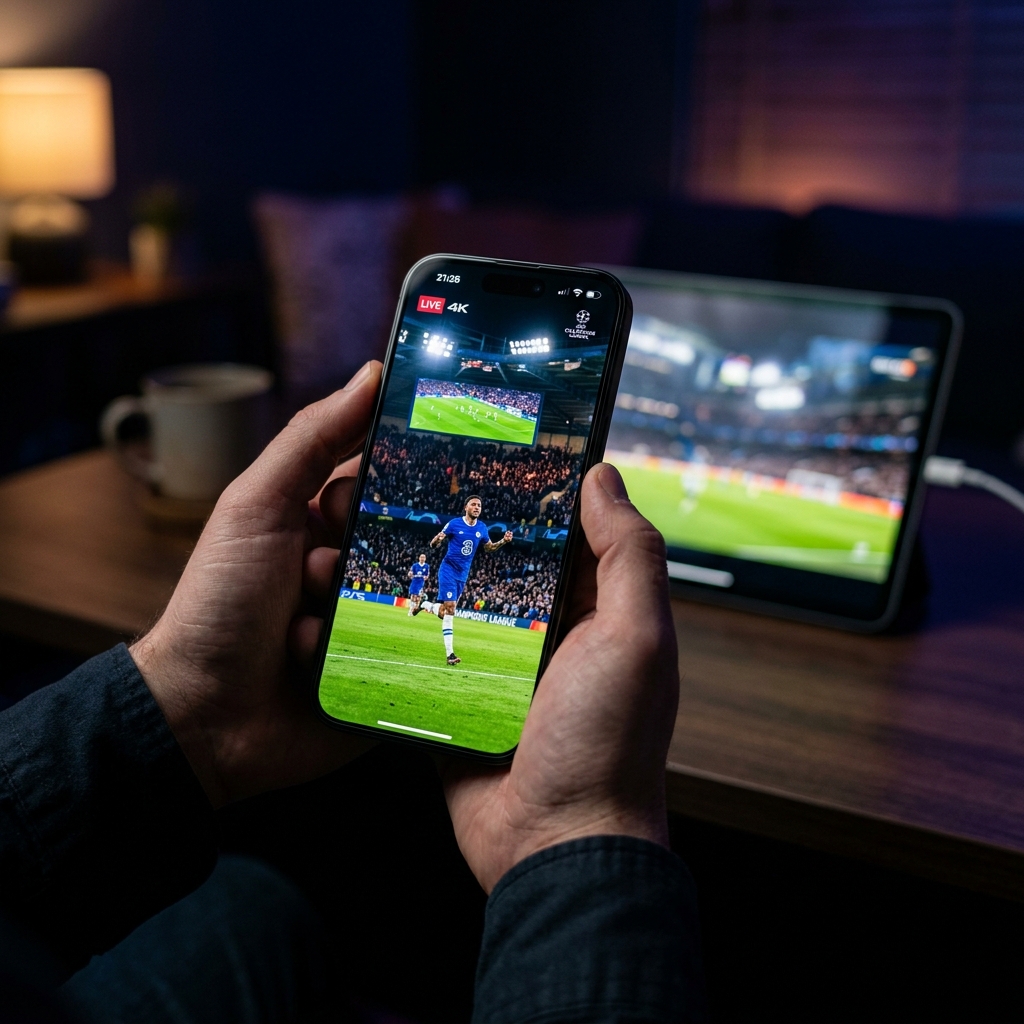
To watch IPTV on iPhone in 2026, download a compatible IPTV player from the App Store — IPTV Smarters Pro, GSE Smart IPTV, or iPlayTV are the top three — then enter the M3U URL or Xtream Codes credentials from your subscription. Apple's App Store restrictions mean sideloading is not an option on iOS, but all three apps are available natively and deliver a premium live streaming experience on both iPhone and iPad. Start with a free trial from Nexus 4K IPTV to get your credentials before configuring your app.
Why iOS Is Now a Serious IPTV Platform
For years, iPhone and iPad were considered secondary IPTV devices — capable, but limited by Apple's tightly controlled App Store. That has changed significantly in 2026. Apple's relaxed guidelines for media streaming applications have allowed a new generation of IPTV players to reach the App Store, and the hardware improvements across the iPhone 16 and iPad Pro M4 lines have made live 4K streaming on iOS genuinely exceptional.
The A17 Pro chip in current iPhone models handles H.265 HEVC decoding entirely in dedicated hardware, with zero impact on battery or thermal performance. Combined with the Super Retina XDR and ProMotion displays — which now reach up to 120Hz with adaptive refresh — live sports content on an iPhone 16 Pro looks better than on many budget televisions. The iPad Pro M4's 13-inch Liquid Retina XDR display takes this even further, making it a legitimate primary screen for IPTV viewing rather than just a secondary portable option.
For a complete picture of which devices work best across all platforms, see our guide to the best IPTV players for 4K streaming in 2026. When you're ready to subscribe, the Nexus 4K IPTV pricing page lists all available plans with multi-device support.
Best IPTV Apps for iPhone and iPad in 2026
Apple's App Store currently hosts several IPTV players, but quality varies significantly. The following three apps have been tested thoroughly with premium M3U and Xtream Codes subscriptions throughout 2026 and represent the strongest options for iOS users at every level of technical experience.
IPTV Smarters Pro: Best for Beginners
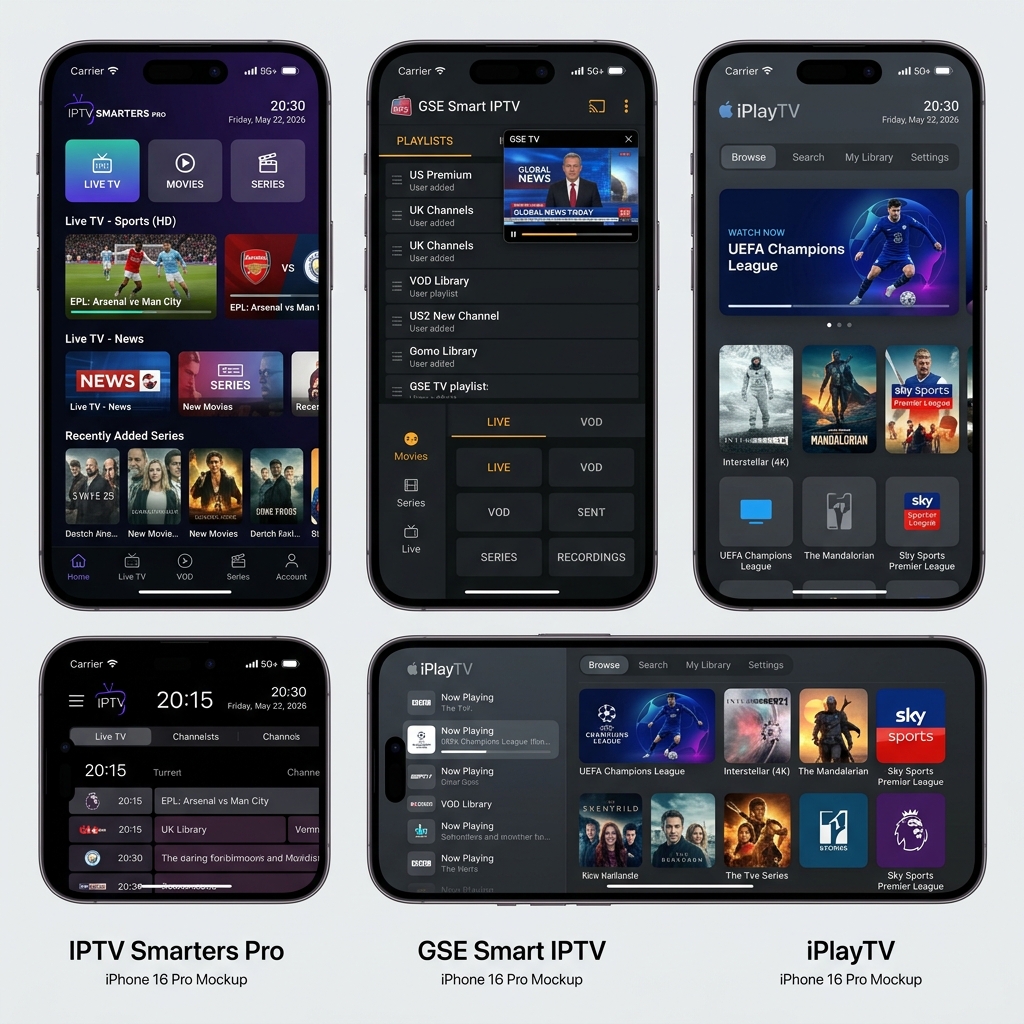
IPTV Smarters Pro is the most accessible IPTV app on iOS in 2026. Its setup process is the simplest of any major player — select "Add User via Xtream Codes API," enter your server URL, username, and password, and the app automatically populates your live channels, VOD library, and TV series sections. The interface mirrors a standard streaming service layout, making it immediately intuitive for users who have never configured an IPTV player before. Smarters supports picture-in-picture on iPad, allowing you to keep a live channel running while browsing other apps. For most Nexus 4K IPTV subscribers on iOS, this is the recommended starting point.
GSE Smart IPTV: Best for Power Users
GSE Smart IPTV offers the deepest configuration options of any iOS IPTV app currently available. It supports multiple playlist formats simultaneously — M3U, M3U8, and custom JSON playlists — and allows advanced users to define per-channel stream quality caps, EPG override sources, and custom player decoders. Its EPG grid is one of the most functional on the platform, displaying up to 7 days of program schedules across all loaded channels. The app also includes a built-in web browser for accessing provider portals directly, which simplifies credential management for users with multiple subscriptions. GSE is the choice for technically experienced users who want full control over every aspect of their IPTV setup on iOS.
iPlayTV: Best for Apple TV + iPhone Ecosystem
iPlayTV earns its place as the premium choice for users who watch on both iPhone and Apple TV. Its seamless iCloud sync means a playlist loaded on your iPhone appears automatically on your Apple TV 4K, maintaining watch history and channel favorites across both devices without any manual configuration. The interface is the most native-feeling of the three — it aligns closely with Apple's own design language, making navigation with Touch ID or Face ID-secured accounts feel natural. For households that use Apple devices exclusively, iPlayTV provides the most cohesive multi-device experience available on iOS. You can see how it performs on Apple TV specifically in our Apple TV IPTV setup guide.
iOS IPTV App Comparison (2026)
Before choosing your app, understand exactly what each one offers and where each has limitations. The table below reflects real-world performance with a premium subscription across all three applications.
| Feature | IPTV Smarters Pro | GSE Smart IPTV | iPlayTV |
|---|---|---|---|
| App Store Price | Free (In-App Purchase) | Free (Premium Tier) | Paid (One-Time) |
| Xtream Codes Support | Yes — Native | Yes | Yes |
| M3U Playlist Support | Yes | Yes — Advanced | Yes |
| Visual EPG Grid | Basic | Full 7-Day Grid | Good |
| Picture-in-Picture (iPad) | Yes | Yes | Yes |
| Apple TV Sync | No | No | Yes — iCloud |
| 4K / HEVC Streams | Yes | Yes | Yes |
| Setup Difficulty | Easy | Advanced | Moderate |
How to Set Up IPTV on iPhone: Step-by-Step
The following setup process uses IPTV Smarters Pro with Xtream Codes — the fastest and most reliable method for iOS in 2026. The same credentials work identically in GSE Smart IPTV and iPlayTV if you prefer those apps.
Step 1: Download Your IPTV App
Open the App Store on your iPhone or iPad and search for "IPTV Smarters Pro." Download and install the app. No special permissions or developer mode activation is required on iOS — unlike Firestick or Android TV, you do not need to enable sideloading. If the app prompts you for notification permissions, you can safely decline; these are not required for streaming functionality.
Step 2: Add Your Subscription via Xtream Codes
Open IPTV Smarters Pro and tap "Add New User" on the welcome screen. Select "Load Your Playlist or File / Xtream Codes API." Choose "Xtream Codes API" and enter the three credentials from your Nexus 4K IPTV welcome email: the Server URL (Host), your Username, and your Password. Tap "Add User." The app will connect to the server and download your full channel list, including live TV, VOD movies, TV series, and sports sections. This sync typically completes in 10–30 seconds depending on your connection speed.
Step 3: Navigate and Customize Your Channel List
Once synced, your channels are organized into category groups automatically. Tap "Live TV" to access the live channel list, "Movies" for VOD content, and "Series" for episodic television. Use the search function to find specific channels by name. To build a personalized favorites list, press and hold any channel name and select "Add to Favorites." Your favorites appear at the top of the channel list on every future launch, eliminating the need to scroll through thousands of entries to find the channels you watch daily.
Optimizing IPTV Performance on iPhone and iPad
iOS handles network streaming efficiently, but a few settings adjustments significantly improve live TV reliability — particularly for 4K streams over cellular or congested Wi-Fi networks.
Use Wi-Fi Over Cellular for 4K Streams
While 4K IPTV streaming over 5G is technically possible on current iPhone hardware, real-world cellular network variability makes it unreliable for live events where a single dropped packet causes visible stuttering. For sports events, news broadcasts, and any live programming where timing matters, connect to a 5 GHz Wi-Fi network whenever possible. The 5 GHz band offers lower interference and higher throughput than 2.4 GHz, delivering the consistent 25+ Mbps required for stable 4K HEVC streams. For casual viewing of standard 1080p channels, 4G LTE and 5G sub-6GHz connections perform acceptably in most US urban markets.
Enable Background App Refresh Selectively
iOS aggressively manages background processes to preserve battery life, which can cause brief buffering if you switch away from your IPTV app and return mid-stream. Go to Settings > General > Background App Refresh and ensure your IPTV app is enabled. This allows the app to maintain its server connection when temporarily backgrounded, preventing the "reconnecting" delay that users on aggressive Low Power Mode settings often experience during half-time or commercial breaks.
Disable Low Power Mode During Live Events
iOS Low Power Mode reduces CPU clock speeds and limits background network activity — both of which directly impact IPTV decoding performance. During extended viewing sessions like an NFL game or a UFC fight card, keep Low Power Mode disabled. The performance difference on 4K HEVC streams is measurable: CPU-limited decoding under Low Power Mode can introduce dropped frames at the exact moments when action is most intense. Keep your iPhone plugged in or charged above 50% before a major viewing session to avoid iOS automatically activating this mode.
IPTV on iPad: Getting the Most from a Larger Screen
The iPad's larger display transforms IPTV from a convenience feature into a genuinely compelling primary viewing experience. An iPad Pro M4 with its 120Hz ProMotion display and Dolby Vision rendering makes live sports look spectacular — but maximizing this requires a few iPad-specific considerations.
Use Split View for Live TV and Browsing
iPadOS 18's multitasking capabilities allow you to run your IPTV app in Split View alongside Safari, social media apps, or sports statistics tools. This is particularly useful during live sports — keep the game stream on one side of the screen and a live stats feed, fantasy sports app, or social timeline on the other. Most iOS IPTV apps support this natively without any configuration changes. Picture-in-Picture mode is an alternative for users who want to minimize the stream to a floating window while using other full-screen apps.
Connect to an External Display
iPad Pro and iPad Air models with USB-C support output to external displays via USB-C to HDMI or Thunderbolt adapters. This allows you to use your iPad as an IPTV streaming source while watching on a larger monitor or television. The iPad Pro M4 supports up to 6K external display resolution, meaning your IPTV stream's quality ceiling is limited only by the resolution of your subscription's streams — not the output capability of the device. For users without a Smart TV, this setup offers a high-quality IPTV viewing experience on any HDMI display. Check our best IPTV service for USA guide for tips on getting the most from your setup.
Troubleshooting Common iOS IPTV Issues
Most problems with IPTV on iPhone and iPad are resolved quickly once you identify the root cause. The following are the three most frequently reported issues by iOS users in 2026.
App Crashes When Loading Channel List
If your IPTV app crashes immediately after entering credentials, the most common cause is a playlist that is too large for the app to parse in a single pass. Large M3U playlists with 30,000+ entries can exceed the memory limits of older iPhone models running iOS 17 or earlier. The fastest fix is to use the Xtream Codes API connection method instead of a raw M3U URL — this loads channels in paginated batches, significantly reducing memory pressure at startup. If the issue persists, contact your provider's support team to request a filtered M3U playlist for your preferred content categories only.
Video Plays But No Audio
Silent video on iOS IPTV streams is almost always caused by one of two things: iOS ringer/silent switch is engaged, or the stream uses an audio codec that requires software decoding and your IPTV app's decoder is set to hardware-only mode. First, check that your iPhone's silent switch is off (the orange indicator on the side is hidden). If audio is still absent, open your IPTV app's settings and switch the decoder from "Hardware" to "Software" or "Auto." This forces the app to use iOS's software audio pipeline, which supports a broader range of audio encodings including AC3 and E-AC3 formats common in US sports broadcasts.
Stream Loads but Buffers Continuously
Continuous buffering on a strong Wi-Fi connection is almost always a server-side issue, not a device problem. The fastest diagnosis: open the same channel on a different device using the same subscription credentials. If it buffers there too, the issue is with the provider's server load. Contact Nexus 4K IPTV support and request a server region change — this typically resolves the issue within minutes. If the stream plays fine on another device, the problem is your iPhone's network path to the server. Toggling Wi-Fi off and back on, or switching from 2.4 GHz to 5 GHz, resolves this in the majority of cases.
Frequently Asked Questions
Can you watch IPTV on an iPhone?
Yes — through App Store apps like IPTV Smarters Pro, GSE Smart IPTV, and iPlayTV. No jailbreak needed. Simply download, enter your subscription credentials, and start streaming live channels in minutes.
What is the best IPTV app for iPhone in 2026?
For most users, IPTV Smarters Pro is the best starting point — its setup takes under two minutes and the interface is immediately familiar. Power users who want full EPG control should choose GSE Smart IPTV. Apple ecosystem users who also own an Apple TV will get the most value from iPlayTV's iCloud sync.
Does IPTV work on iPad?
Fully. Every app listed above is optimized for iPadOS, supporting Split View, Picture-in-Picture, and USB-C external display output. The iPad Pro M4 is particularly well-suited for IPTV, with its ProMotion display and Dolby Vision support elevating live sports content significantly.
Do I need to jailbreak my iPhone to use IPTV?
No. All top IPTV apps for iOS are available on the official App Store. Jailbreaking is not needed, not recommended, and would void your Apple warranty. The apps listed in this guide are fully compliant with Apple's App Store guidelines.
Can I watch IPTV on iPhone using cellular data?
Yes. For standard 1080p channels, 4G LTE is sufficient in most US markets. For 4K streams over cellular, a strong 5G signal is required. For live events like NFL games or UFC fight cards, a home Wi-Fi connection is always preferable for reliability. Get started with a Nexus 4K IPTV trial plan and test on your network before your first major live event.
Your iPhone and iPad are already capable of delivering a world-class live TV experience — the only missing piece is a reliable subscription and the right app. Explore Nexus 4K IPTV and get your Xtream Codes credentials today. Setup takes under three minutes, and with 30,000+ live channels available in 4K, the first channel you open will show you exactly what you've been missing. Choose your plan now and start streaming before the next big game.


