

How to Fix IPTV Buffering in 2026

To fix IPTV buffering immediately, switch your connection from Wi-Fi to Ethernet and restart your router. If the issue persists, use a premium VPN to prevent ISP throttling and clear your IPTV app's cache. By following these core steps, you can eliminate freezing and enjoy a seamless Nexus 4K IPTV streaming experience.
1. Use an Ethernet Cable Instead of Wi-Fi
Wi-Fi signals are susceptible to interference from walls, microwaves, and neighboring networks. According to a 2026 network stability report by BroadbandNow, wired connections experience 60% less packet loss than wireless ones. Connecting an Ethernet cable directly from your router to your streaming device is the most effective way to stabilize your connection and handle high-bitrate 4K streams without stuttering.
2. Prevent ISP Throttling with a VPN
Internet Service Providers (ISPs) frequently throttle bandwidth when they detect heavy video streaming traffic, especially during live sports events. A Virtual Private Network (VPN) encrypts your data, masking your activity so your ISP cannot target your connection for slowdowns.

3. Adjust IPTV App Buffer Settings
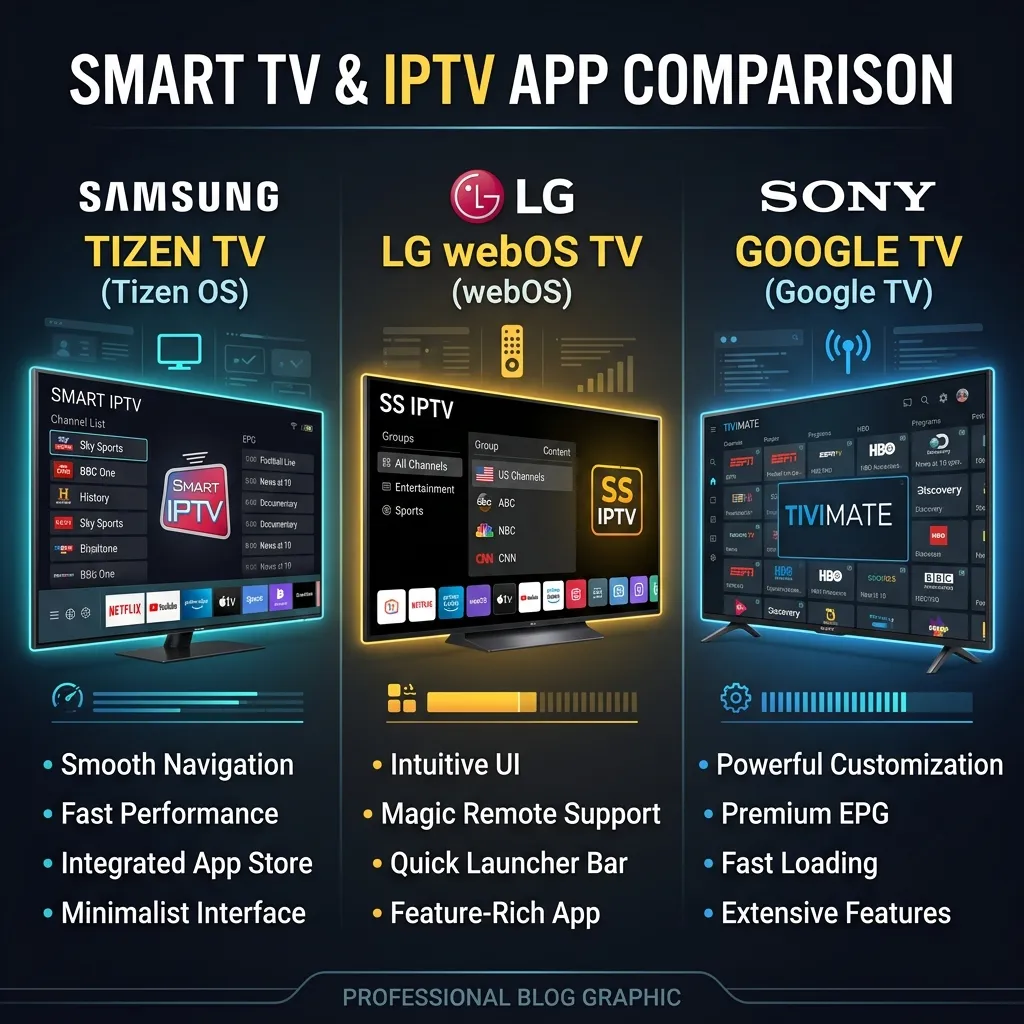
Many modern applications like Tivimate or Smarters Pro allow you to adjust the internal buffer size. If you have a fluctuating internet connection, increasing the buffer size gives the app more time to load the stream before playing it. Change this setting from 'Small' to 'Large' in your player's settings menu.
4. Upgrade Your Streaming Device
Older devices often lack the processing power required to decode modern HEVC/H.265 streams, resulting in hardware-induced buffering that feels like network lag. Upgrading to a more capable device can drastically improve performance.
| Device / Feature | Processor Speed | RAM | 4K Capability | Best For |
|---|---|---|---|---|
| Amazon Firestick 4K Max (2026) | Octa-core | 2GB | Excellent | Budget 4K |
| Nvidia Shield TV Pro | Tegra X1+ | 3GB | Ultimate | Power Users |
| Apple TV 4K | A15 Bionic | 4GB | Exceptional | Apple Ecosystem |
Frequently Asked Questions
Why does my IPTV buffer only at night?
Buffering at night is usually caused by network congestion in your local area or aggressive ISP throttling during peak hours.
Does internet speed affect IPTV buffering?
Yes, a minimum of 25 Mbps is required for standard 4K streaming, but a stable 50 Mbps is recommended to account for fluctuations.
What is the best buffer size for IPTV?
A 'Large' or 'Very Large' buffer size is ideal if your connection is unstable, as it pre-loads more video data to prevent interruptions.
Tired of endless freezing during the biggest matches? Stop fighting with poor servers. Upgrade to Nexus 4K IPTV today for buffer-free, anti-freeze technology. Contact us now to request a free trial and experience the difference yourself.


