

Best IPTV Service for Smart TV in 2026: Full Setup & Streaming Guide
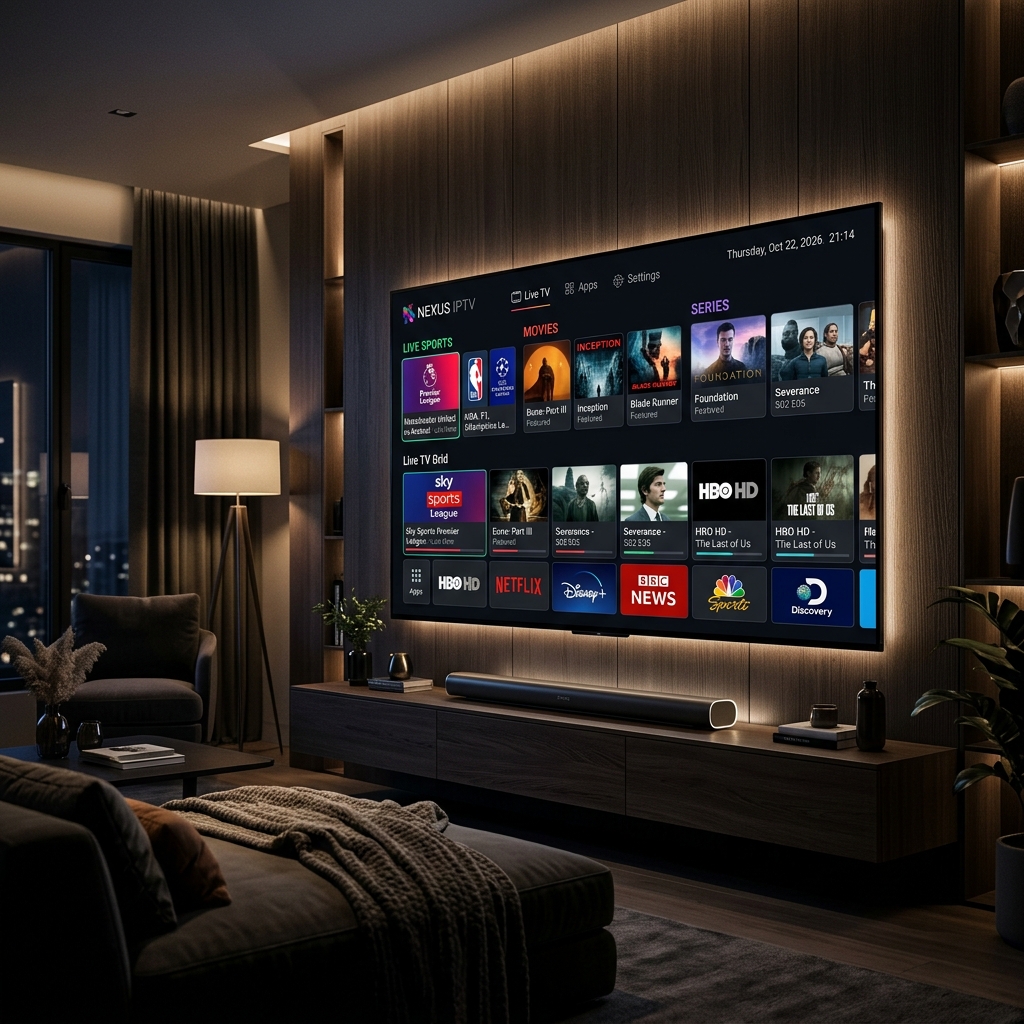
The best IPTV service for Smart TV in 2026 depends on your device brand, your internet speed, and the quality of the provider you choose. Whether you own a Samsung, LG, Sony, or an Android TV box, the right combination of app and subscription unlocks 30,000+ live channels, 100,000+ VOD titles, and true 4K streaming — all without a cable contract. This guide walks you through everything you need to know, from choosing a provider to getting your first stream running in under five minutes. You can start right now with a free trial from Nexus4kTV.
Why Smart TVs Are Now the Best Devices for IPTV
Smart TVs have quietly become the most powerful streaming terminals in most American homes. Modern Samsung Tizen, LG webOS, and Sony Google TV models ship with dedicated app stores, hardware-accelerated HEVC decoders, and native 4K HDR support — everything you need for buffer-free IPTV. Unlike Firestick or Apple TV, a Smart TV eliminates the need for an external dongle, reducing setup complexity and latency. In 2026, with Wi-Fi 6 now standard in most mid-range panels, a stable 4K stream requires nothing more than a reliable IPTV subscription and the correct app installed.
The key advantage over older solutions is direct hardware decoding. A 65-inch Samsung QN90D, for example, handles 60fps 4K HDR streams with zero CPU strain, whereas older streaming sticks often throttle under high-bitrate loads. This matters significantly for live sports, where frame drops during peak action moments are unacceptable.
Best IPTV Apps by Smart TV Platform (2026)
Each Smart TV ecosystem has a different app store and different sideloading capabilities. The app you use will directly determine the quality of your EPG, zapping speed, and VOD access. Below is a breakdown of the top options by platform.
Samsung Smart TV (Tizen OS)
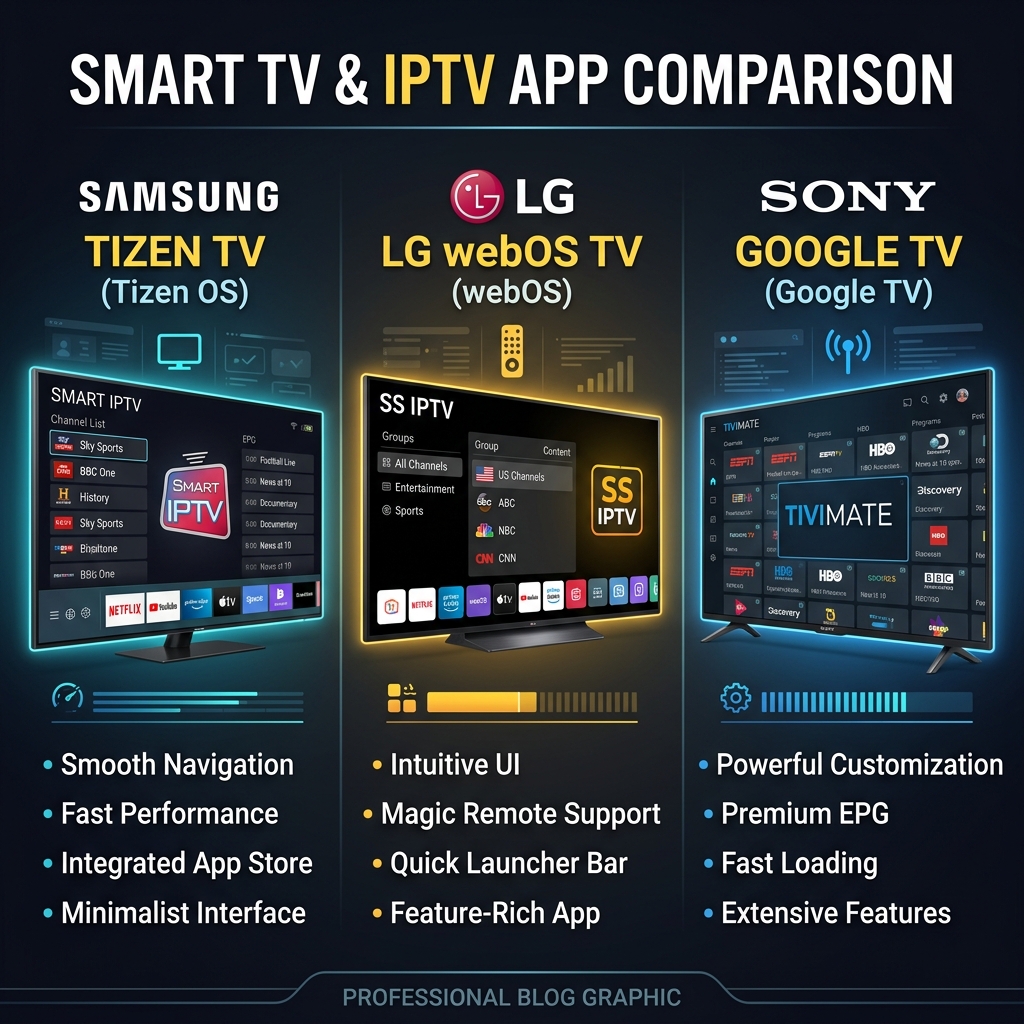
Samsung's Tizen OS does not support direct APK sideloading without developer mode activation. The best native option available in the Samsung App Store is IPTV Smarters Pro and Smart IPTV. Both support M3U playlist URLs and Xtream Codes API — the two connection methods used by premium providers. For Nexus4kTV subscribers, the Xtream Codes method is recommended for the fastest channel loading and automatic EPG sync.
LG Smart TV (webOS)
LG's webOS platform is the most IPTV-friendly of all manufacturer OSes. SS IPTV is available natively in the LG Content Store and requires no sideloading. It supports M3U, EPG XML, and multi-screen layouts. For users who want a more premium interface, enabling Developer Mode on webOS unlocks the ability to sideload Tivimate via a companion Android app — though this requires additional setup steps.
Sony & Android TV / Google TV
Sony Bravia TVs running Android TV or Google TV have the broadest app compatibility of any Smart TV platform. The Google Play Store gives direct access to Tivimate Premium, Sparkle TV, and OTT Navigator — the three highest-rated IPTV players on Android. No sideloading is required. Simply install your preferred player, enter the credentials from your Nexus4kTV subscription, and you're streaming in 4K within minutes.
Smart TV IPTV Compatibility Chart (2026)
Before choosing your setup method, confirm your TV brand, OS version, and supported connection type using the table below.
| TV Brand / OS | Best App | Connection Method | 4K HDR Support | Sideload Required |
|---|---|---|---|---|
| Samsung (Tizen) | Smart IPTV / Smarters | M3U / Xtream Codes | Yes | No |
| LG (webOS) | SS IPTV | M3U / EPG XML | Yes | No |
| Sony (Google TV) | Tivimate Premium | Xtream Codes / M3U | Yes (Dolby Vision) | No |
| Android TV Box | Tivimate / Sparkle TV | Xtream Codes / M3U | Yes | No |
| Hisense / TCL (Android) | Smarters Pro | Xtream Codes | Yes (Model Dependent) | No |
How to Set Up IPTV on Your Smart TV in 5 Steps
Regardless of your TV brand, the core setup process follows the same logic. These five steps apply to any platform using an Xtream Codes connection — the most reliable method available in 2026.
- Choose your IPTV subscription. Sign up for a service that provides Xtream Codes credentials (Server URL, Username, Password). Nexus4kTV offers a free trial plan that works on all devices.
- Download your IPTV app. Open your Smart TV's app store and install the appropriate player from the compatibility chart above.
- Select "Add Playlist" or "Xtream Codes." Most apps will present this option on their first launch screen.
- Enter your credentials. Paste the server URL, username, and password from your subscription confirmation email exactly as provided.
- Sync and stream. The app will fetch your full channel list and EPG guide. This typically takes 30–60 seconds. Select your first channel and enjoy 4K streaming.
What to Look for in a Smart TV IPTV Provider
Not all IPTV subscriptions are created equal. A provider that works flawlessly on a phone may perform poorly on a 4K Smart TV due to insufficient server capacity or missing codec support. When evaluating a provider for Smart TV use in 2026, prioritize the following.
Server Uptime and Stability
Live TV is unforgiving. A single server dropout during a Champions League final or an NFL playoff game is a disqualifying failure. Look for a provider that advertises — and can prove — 99.9% server uptime. Nexus4kTV maintains a monitored infrastructure with automatic failover, ensuring your stream stays live even during peak demand periods.
4K and HDR Stream Availability
Many providers advertise "4K" but only carry a handful of channels at that resolution. A genuine 4K IPTV service in 2026 should offer dedicated UHD streams for major live sports events, flagship entertainment channels, and its core VOD library. Confirm this before committing to any annual plan.
Multi-Screen Connections
Households with multiple Smart TVs need multi-connection plans. If your provider only allows one simultaneous stream, watching live TV on your bedroom TV while someone else watches a movie in the living room is impossible. Most quality providers offer 2- and 4-connection plans at reasonable price points. Check the Nexus4kTV pricing page for current multi-screen options.
Common Smart TV IPTV Problems and How to Fix Them
Even with the right app and provider, occasional issues can arise. The following are the most common problems Smart TV users report in 2026, and their fastest solutions.
Buffering on 4K Channels
Buffering on a Smart TV is almost never caused by the TV itself. The two most common culprits are a slow Wi-Fi connection or ISP throttling of high-bandwidth streams. Start by switching from Wi-Fi to a wired ethernet connection using a USB-to-ethernet adapter. If buffering persists, contact your provider to request a server region change, as closer servers dramatically reduce latency. For persistent ISP throttling, a Smart DNS or lightweight VPN configured at the router level is the cleanest fix.
EPG Not Loading
If your electronic program guide is blank or not updating, the issue is almost always a stale EPG URL. Open your IPTV app's settings, locate the EPG source field, and re-enter the URL provided by your subscription service. Most quality providers refresh their EPG every 24 hours. Forcing a manual refresh inside the app typically resolves the issue within 60 seconds.
Frequently Asked Questions
Can I use IPTV directly on my Samsung Smart TV without a Firestick?
Yes. Samsung Tizen supports apps like Smart IPTV and Smarters Pro natively — no external device needed. Just install from the Samsung App Store and enter your subscription credentials.
What internet speed do I need for 4K IPTV on a Smart TV?
A stable 25 Mbps connection is the minimum for single-screen 4K. If multiple Smart TVs are streaming simultaneously in your home, upgrade to 50 Mbps or higher to avoid quality drops.
Is there a free trial available for Smart TV IPTV?
Yes. Request your 24-hour Nexus4kTV free trial through our contact page. It works on every platform covered in this guide — no payment required upfront.
Which Smart TV brand is best for IPTV in 2026?
Sony Google TV gives you the broadest app selection, including Tivimate Premium from the Google Play Store. For users who want a simpler, no-sideload experience, Samsung and LG are excellent alternatives with dedicated native apps.
Ready to cut the cable and upgrade your Smart TV experience? Explore everything Nexus4kTV offers on the homepage, or go straight to our pricing page to find the plan that fits your household. Setup takes under five minutes — your first 4K stream is closer than you think.


